
Help Center
How can we help?
Everything you need to trade on Kalshi Pro, from your first fill to leverage on perpetuals.
Trade
Perpetuals on Kalshi Pro (Beta)
Trade crypto, stocks, indices, and metals long or short with leverage: one page with the chart, book, order ticket, and every position, and the same markets as Canvas tiles.
6 min read · Updated Nov 4, 2026
A perpetual follows the price of an asset, like Bitcoin, gold, or a stock, with no expiry. You can go long or short, use leverage, and hold the position as long as your margin supports it. Leverage cuts both ways: a move against you eats into your margin quickly, so where you’re liquidated and what funding costs you matter as much as where you get in.
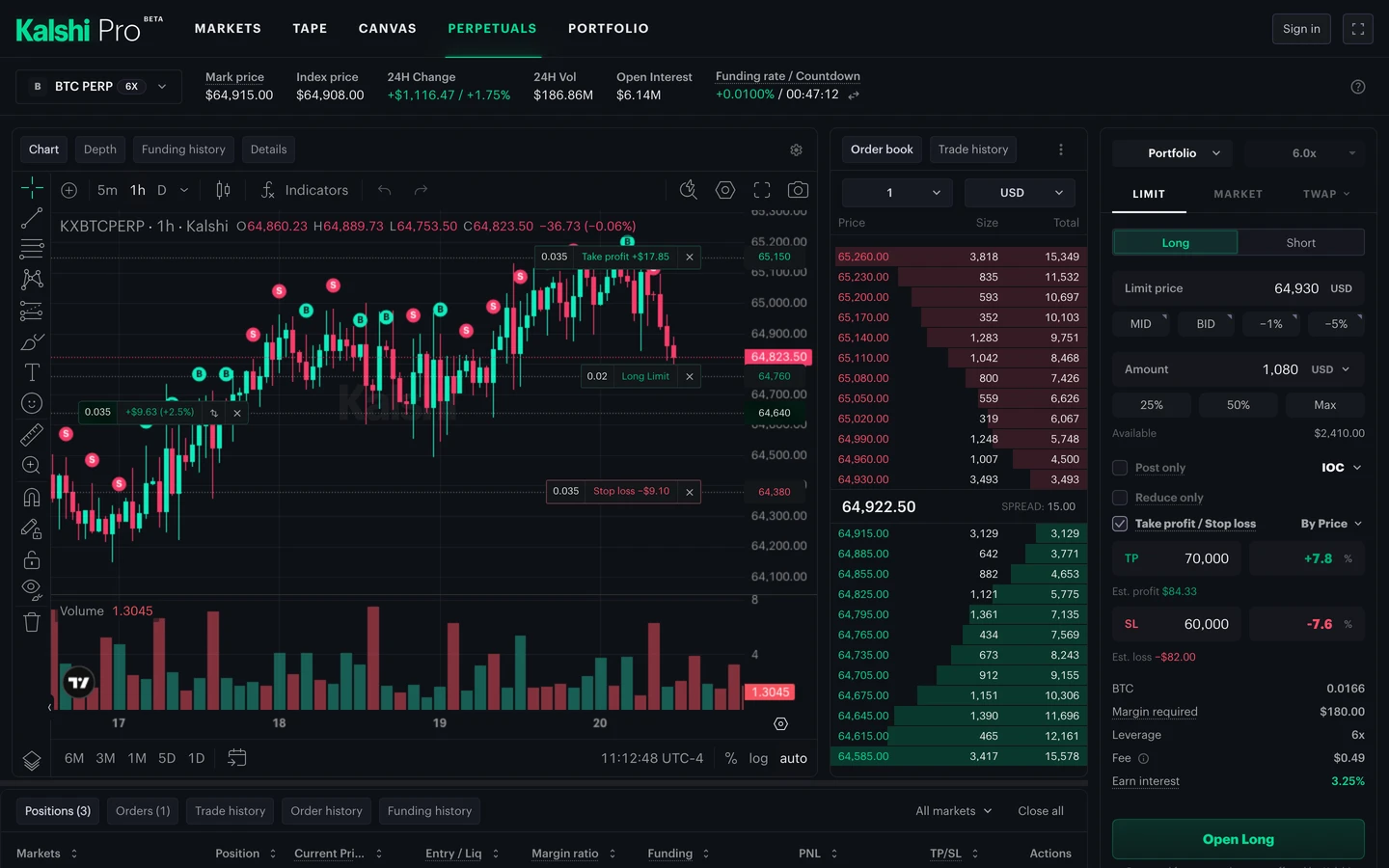
The Perpetuals page keeps all of that on one screen: the market’s mark, index, and funding across the top, the chart with your orders and positions drawn on it, the live order book, the order ticket, and every position you hold. Perpetuals also run as tiles on the Canvas, next to your prediction markets.
Picking a market
Click the market name at the top left to switch markets. The picker groups them by category (Crypto, Indices, Metals, Stocks) and lists each one’s price, 24-hour change, volume, funding rate, and open interest. Sort any column, or start typing to search. The badge beside each name is its maximum leverage, which is set per market.

To trade a perpetual on the Canvas, add it from the search box the same way you add a prediction market.
The header
- Mark price: the price your margin, profit and loss, and liquidation are measured against.
- Index price: the underlying asset’s price from outside sources, which the perpetual tracks.
- 24H Change, 24H Vol, and Open Interest: how far the market has moved, how much has traded, and how much is still open.
- Funding rate / Countdown: what longs and shorts pay each other at the next funding time, and how long until then. The arrows beside it compare the rate with other venues.
- Trading hours: shown for markets that close, such as stocks. Crypto trades around the clock.
Chart views
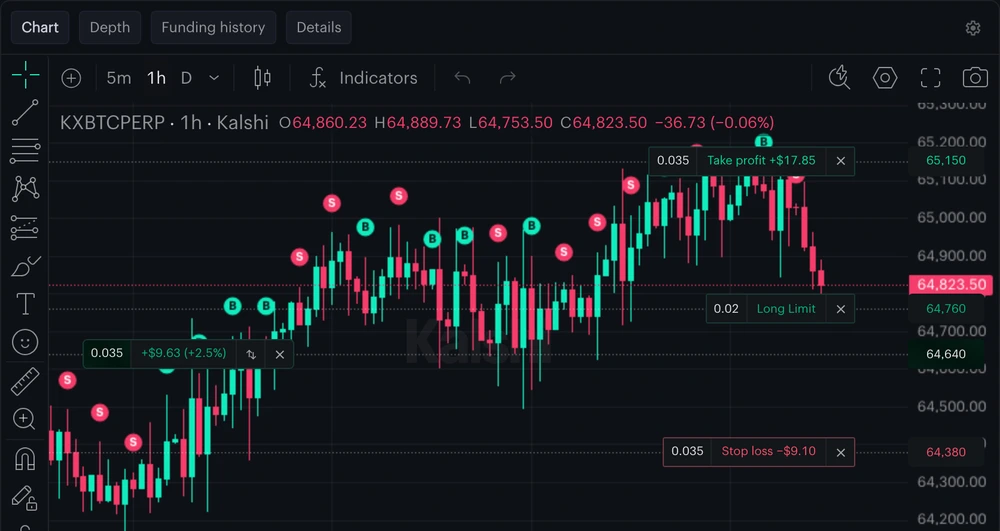
The chart has four views, one tab apart. Pick one to see it.
1 / 4
Placing an order
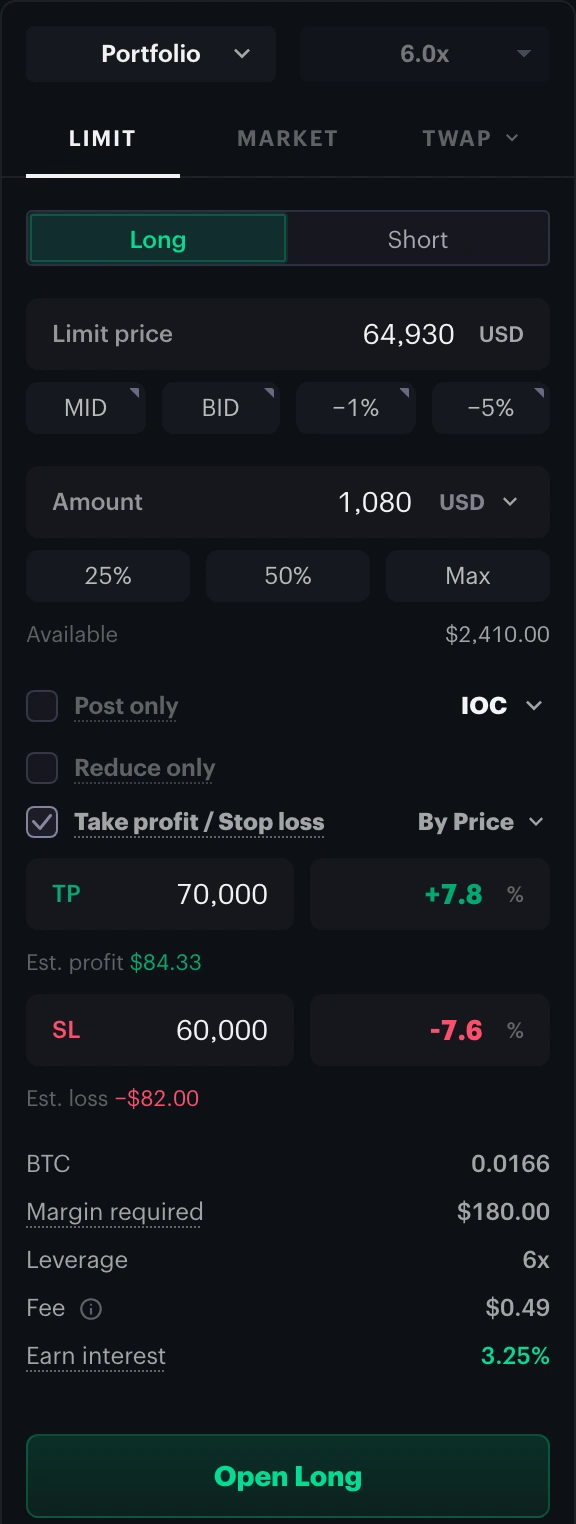
Start at the top of the ticket. Pick a margin type and leverage, then an order type, then Long or Short.
- Margin type: Portfolio margin nets the risk of all your positions, so offsetting positions need less margin. Isolated margin holds a separate amount for one position, and only that position can be liquidated if it runs out.
- Leverage: the button beside the margin type. Higher leverage needs less margin but moves your liquidation price closer. The ticket shows the margin required, your leverage, and the fee before you submit.
- Size: enter the amount in dollars or in the asset; the unit menu beside the field switches between them. 25%, 50%, and Max size from your available balance.
1 / 4
Take profit, stop loss, and trailing stops
Check Take profit / Stop loss on the ticket to attach exits to an order. Enter a price, or on isolated margin a target by ROI or PnL, and the ticket shows the estimated profit and loss. To add or change exits on a position you already hold, click the pencil in its TP/SL column.
A trailing stop follows the price as it moves in your favor and never moves back. If the price then retraces by the amount or percentage you set, it closes the position at market. You can set one on an open position.
Trading from the chart
Your orders and positions are drawn on the Chart view, and you can act on them without leaving it:
- Place an order: hover the price axis and click + to open a ticket at that price.
- Move an order: drag its line to a new price. Click × on its label to cancel it.
- Move an exit: drag a take-profit or stop-loss line, or click × to remove it.
- Close or reverse a position: use × or ⇅ on the position’s label.
- See your fills: buys and sells are marked B and S on the candles. Hover over one for its size and price.
Turn the lines and marks on or off from the settings (gear) button on the chart.
The blotter
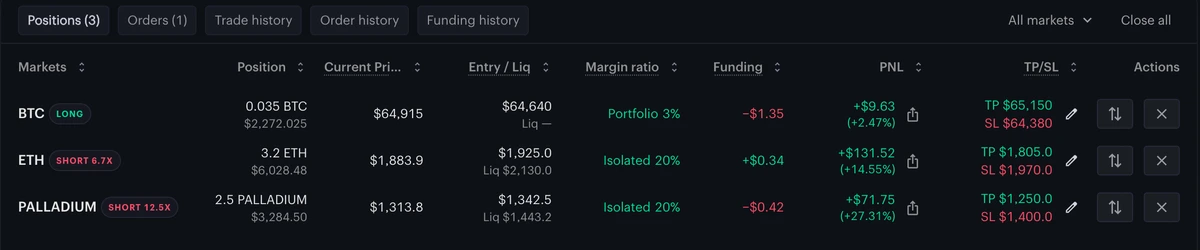
Below the chart, Positions lists each position’s size, entry and liquidation price, margin ratio, funding paid or received, PnL, and exits. Each row lets you edit its TP/SL, reverse it, close it, or share its PnL. Close all closes every position at once. Orders, Trade history, Order history, and Funding history complete the record. Drag the divider above the blotter to give it more or less room.
Perpetuals are newer to Pro. If something behaves differently from what you expect, let us know.